
How to Properly Set Up a Webflow Website for SEO



Setting up a website in Webflow is fast, but setting it up properly for SEO is a different story. Many websites launch with missing technical settings that prevent search engines from crawling, indexing, and ranking pages correctly. Duplicate content, slow loading times, poor site structure, missing metadata, and indexing mistakes can all limit your organic visibility, even if your content is excellent.
Optimizing dozens of Webflow websites throughout my career, I know firsthand that moving from the second page to the third position requires configuring 5 or 6 settings, which will only take 30 minutes of your time. This is a step-by-step guide that walks you through every one of them, from day-one setup to the advanced tactics that work in 2026.
1. Enable SSL for Secure Connections
Webflow provisions free SSL automatically through Let's Encrypt when you connect a custom domain: no manual configuration needed. This matters because browsers now flag non-HTTPS sites with security warnings that scare visitors away before they read a single word.
To verify it’s active, go to Site Settings → Publishing → SSL certificate status. You want to see that green checkmark before anything else.
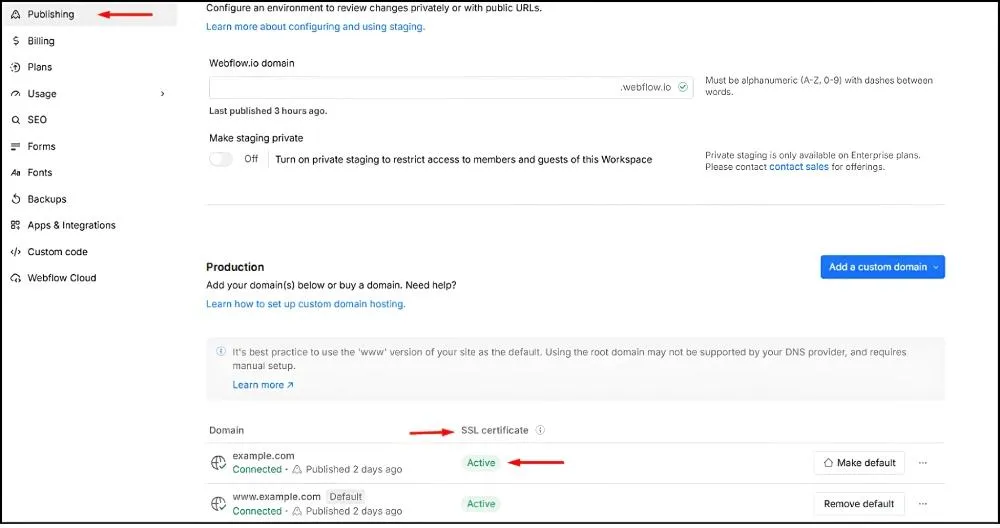
Additional tips to ensure full security:
- Force HTTPS: Enable the option to redirect all traffic to HTTPS so every visitor is protected.
- Check for mixed content: Make sure all images, scripts, and embedded content are served over HTTPS to avoid browser warnings.
- Verify regularly: After publishing changes or updating DNS settings, double-check that SSL remains active and properly configured.
2. Disable Indexing on your Webflow.io Subdomain
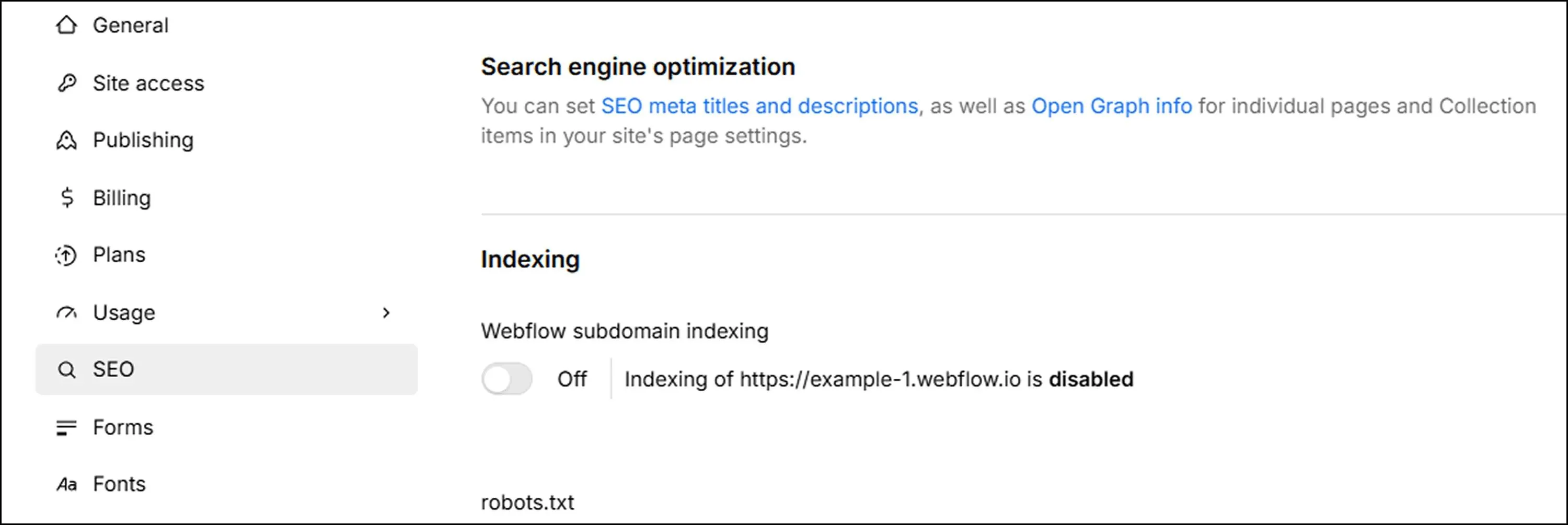
People launch their custom domain but forget about the .webflow.io staging subdomain. Google indexes both, so that creates duplicate content, which dilutes your ranking signals.
The fix takes 30 seconds. Go to Site Settings → SEO → Disable search engine indexing. Do this before your custom domain goes live. You can verify by searching site:yoursite.webflow.io in Google, which returns zero results if configured correctly.
3. Turn On HTML, CSS, and JavaScript Minification
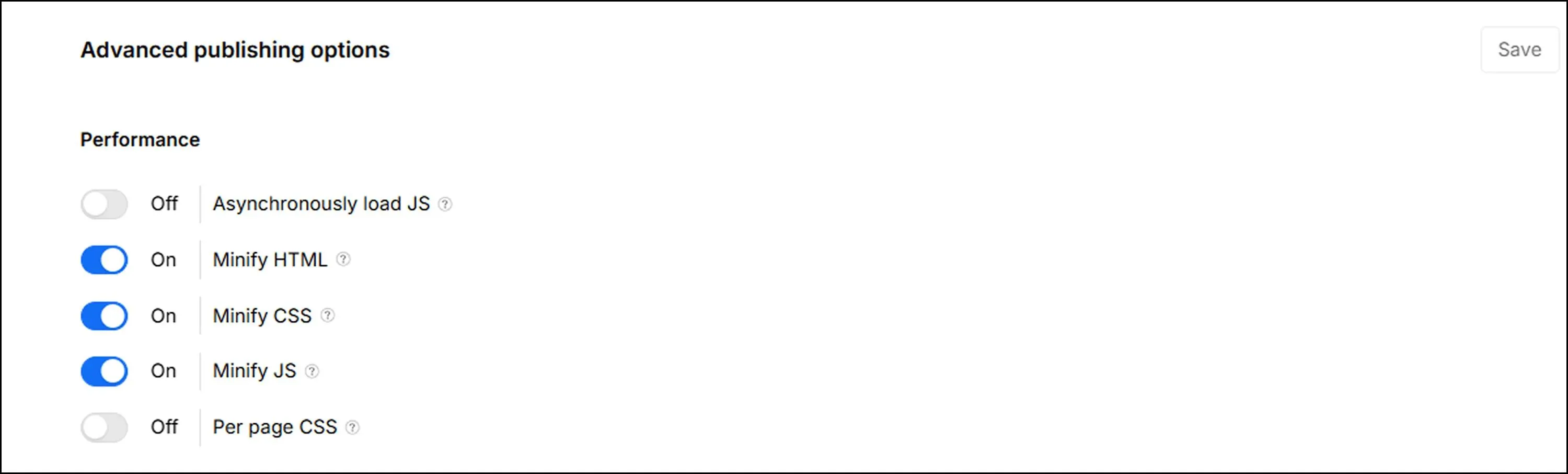
Minification removes whitespace and comments from your code files, typically reducing transfer size by 20-40%. According to Google's guidance, good LCP (Largest Contentful Paint) is 2.5 seconds or less. The business impact is significant: Portent's research found that sites loading in 1 second have 2.5x higher e-commerce conversion rates than those loading in 5 seconds.
Enable this in Site Settings → Publishing → Minify HTML/CSS/JS. Toggle all three ON. It's a one-time setting that improves every page on your site.
4. Customize Your Robots.txt for Crawl Control
Robots.txt tells search engines which parts of your site to crawl or ignore. In Webflow, go to Site Settings → SEO → Robots.txt (paid plan feature). Check an example configuration below:
User-agent: *
Disallow: /search/
Disallow: /*?color=
Disallow: /*?size=
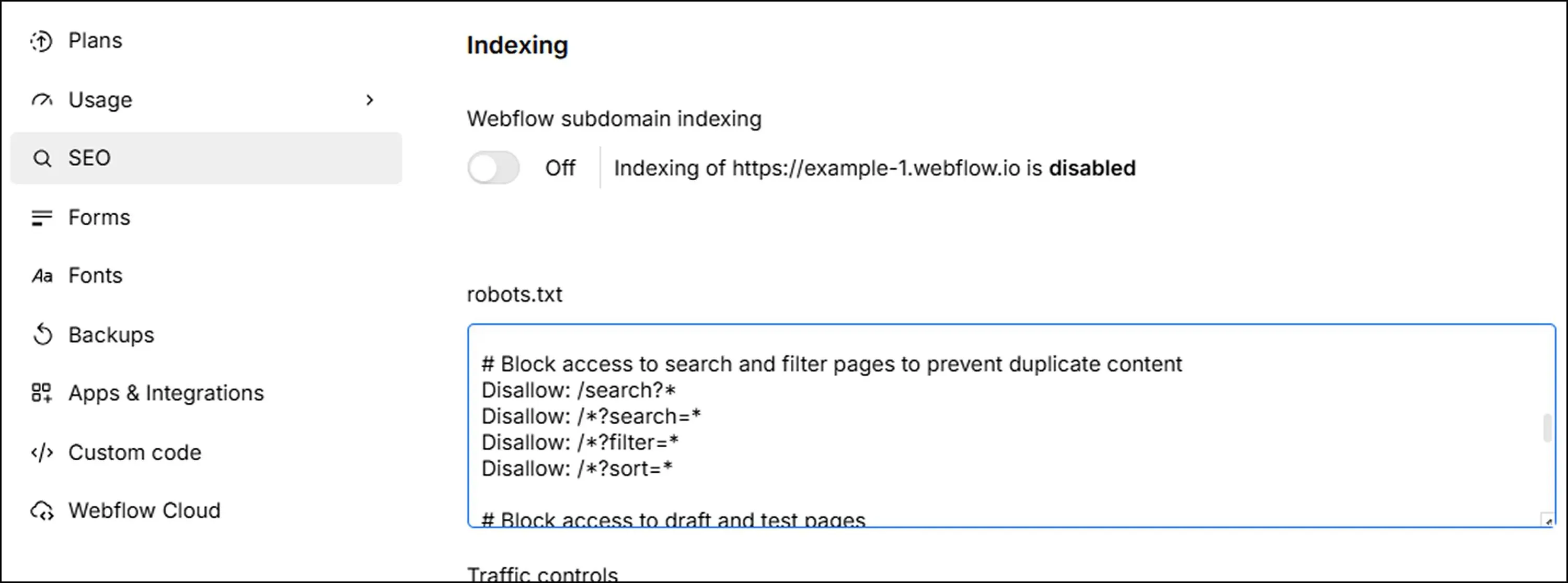
Always test with Google Search Console's Robots.txt Tester before publishing. Check the Webflow robots.txt documentation for more examples.
5. Submit and Monitor Your XML Sitemap
Webflow generates your sitemap automatically at yourdomain.com/sitemap.xml. It updates every time you publish. This is how I set up Google Search Console for Webflow sites:
- Go to search.google.com/search-console
- Add a property. For most sites, the Domain property is the better choice, as it covers all subdomains and protocols in one place (verification requires DNS access via your domain registrar). If you don't have DNS access, use the URL prefix with https://yourdomain.com instead.
- For URL prefix: copy the HTML meta tag from GSC. For Domain property: copy the TXT record.
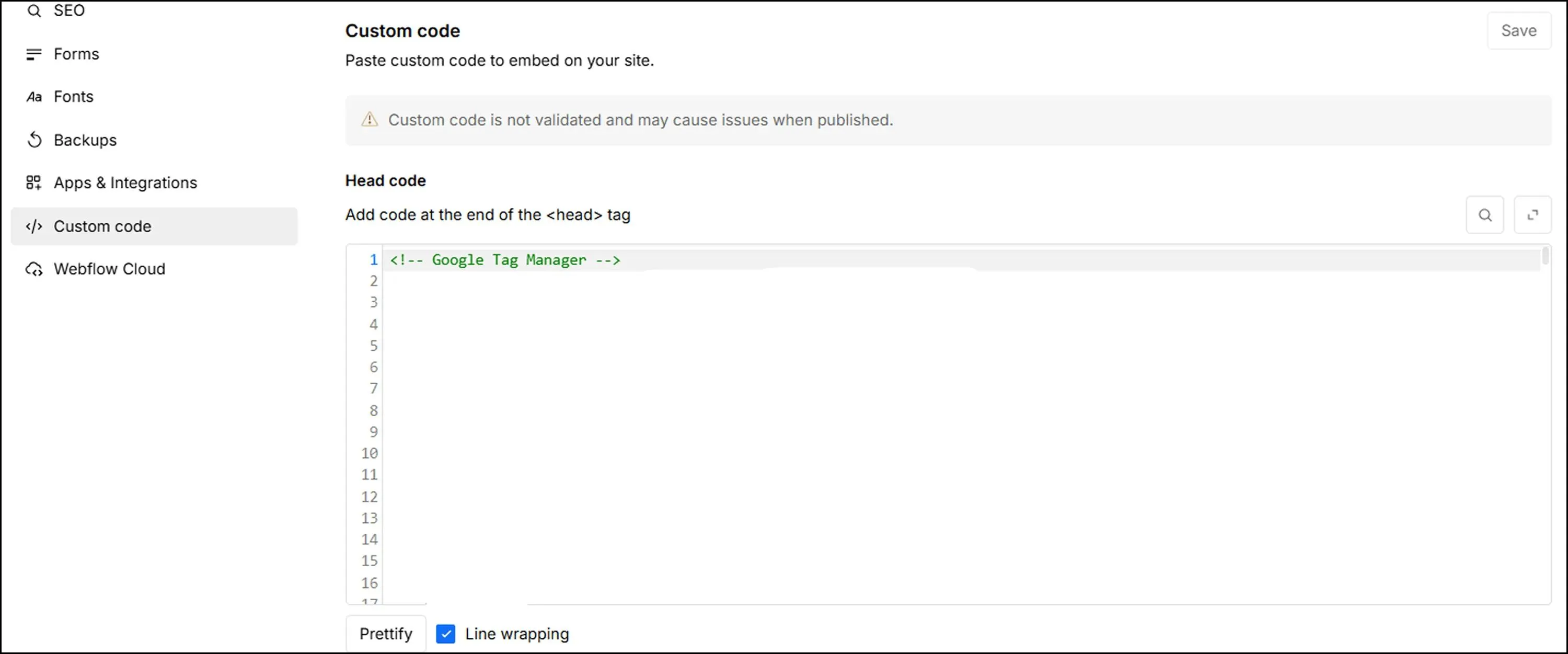
- In Webflow: Site Settings → Custom Code → Head Code → Paste the meta tag. (For DNS verification, paste the TXT record at your domain registrar instead, not in Webflow.)
- Publish and click "Verify" in GSC.
- Submit sitemap: go to Sitemaps → Add new sitemap → enter sitemap.xml → Submit.
Once verified, GSC begins collecting data. The monitoring workflow lives in the Tools section below.
6. Implement Schema Markup for Rich Results
Schema markup helps search engines understand your content and can trigger rich results like star ratings, FAQs, and sitelinks. According to the HTTP Archive Web Almanac 2024, JSON-LD appears on 41% of pages.
Implementation: Page Settings → Custom Code → Inside <head> tag → Paste the script below.
<script type="application/ld+json">
{
"@context": "https://schema.org",
"@type": "Organization",
"name": "Your Company",
"url": "https://yoursite.com",
"logo": "https://yoursite.com/logo.png"
}
</script>
Replace the values with your actual company name, URL, and logo path. Test with Google's Rich Results Test at search.google.com/test/rich-results.
7. Create a Useful Custom 404 Page
A 404 page is an opportunity for user retention. If a person clicks on a broken link, you want to send them back to your site, not lose them altogether.
In Webflow, head to the Pages panel and add a new page called "404." Webflow serves it automatically for missing URLs. Choose a clear error message, a search bar, links to popular pages, and a contact option. Webflow returns a proper 404 status code (not 200), which is the correct behavior.
8. Implement Canonical Tags
Common causes in Webflow that I see regularly:
- CMS Collection items with similar content
- Pagination pages
- Filter/sort parameter URLs
Solutions I use: canonical tags for parameter variations, unique titles and descriptions per CMS item, and self-referencing canonicals on paginated pages. The last one takes more effort but pays off.
A canonical tag tells search engines the "master" version of a page when duplicates exist. Think yoursite.com/page vs. yoursite.com/page?utm_source=email. It consolidates ranking signals to one URL instead of splitting them.
Webflow implementation:
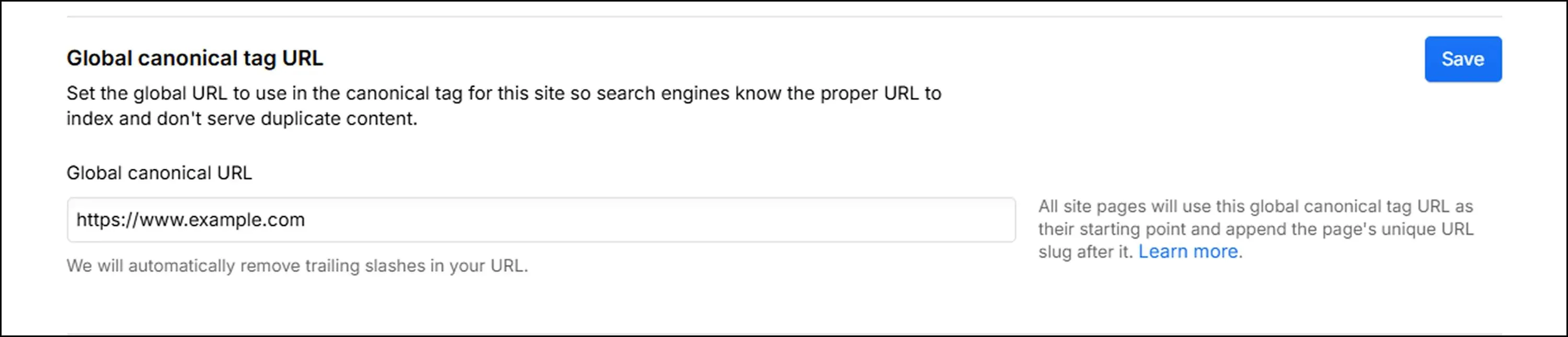
- Global canonical: Project Settings → SEO tab → Global canonical tag URL field. Enter your full base URL (e.g., https://www.yoursite.com). Webflow combines it with each page's slug to generate canonicals across the site.
- Page-level canonical: Page Settings → SEO tab → Canonical URL field. Use this to override the global setting for individual pages.
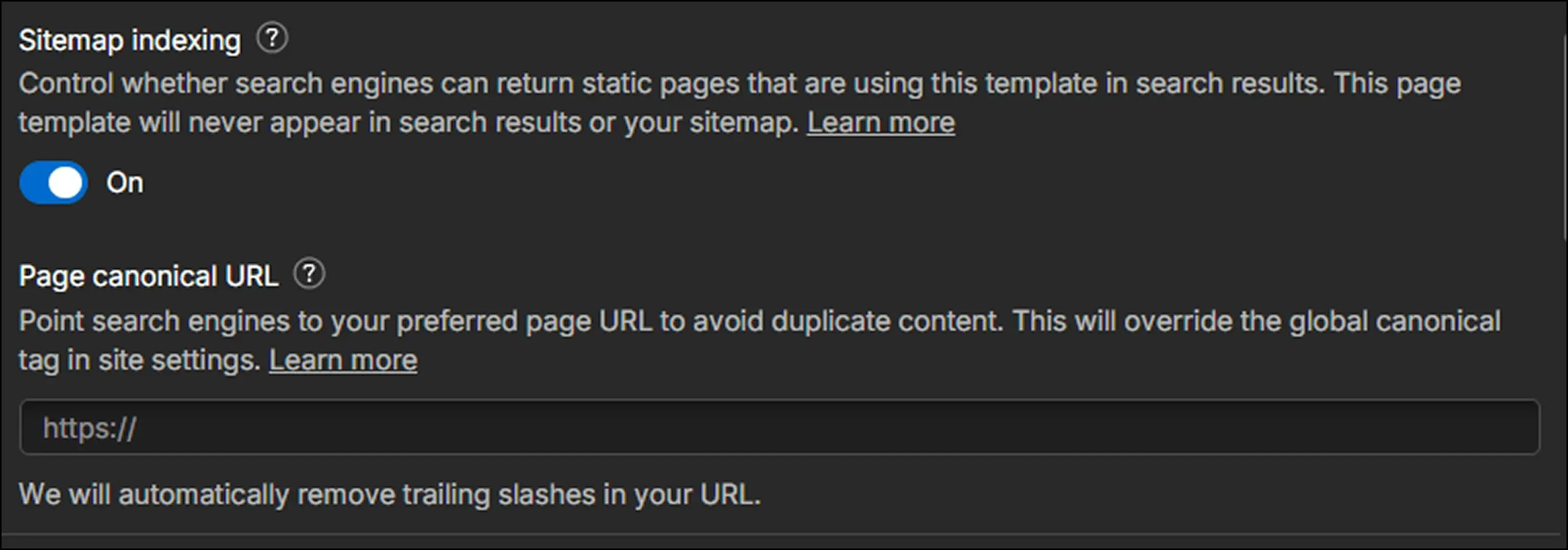
Use page-level canonicals for cross-domain duplicates or parameter variations.
9. Use Semantic HTML5 Tags
Semantic HTML5 means using tags that describe their content's purpose. In Webflow's visual builder, you can drag and drop these elements directly instead of relying on generic <div> wrappers:
- <header>: Site header content
- <nav>: Navigation menus
- <main>: Primary page content
- <article>: Self-contained content pieces
- <section>: Thematic groupings
- <aside>: Supplementary content
- <footer>: Site footer
I've seen sites built entirely with generic <div> wrappers. Google's crawlers can still read them, but semantic tags give explicit content hierarchy signals. They help search engines understand page structure and extract featured snippets more accurately.
10. Structure Your Heading Tags Properly
Each page gets exactly one H1 tag. This contains your primary keyword and page topic. In Webflow, set this in the Heading element's settings dropdown.
For the rest of your headings, follow this hierarchy:
| Tag | Purpose | Example |
|---|---|---|
| H1 | Page title (one per page) | Technical Webflow SEO Checklist |
| H2 | Main sections | Site Architecture Checklist |
| H3 | Subsections | Plan Clear Site Navigation |
| H4+ | Deeper nesting | Specific tactics |
Never skip levels. Don't jump from H2 to H4. This creates a logical outline that crawlers and screen readers follow.
11. Create SEO-Friendly URL Slugs
In Page Settings → SEO tab, you'll find the URL slug field.
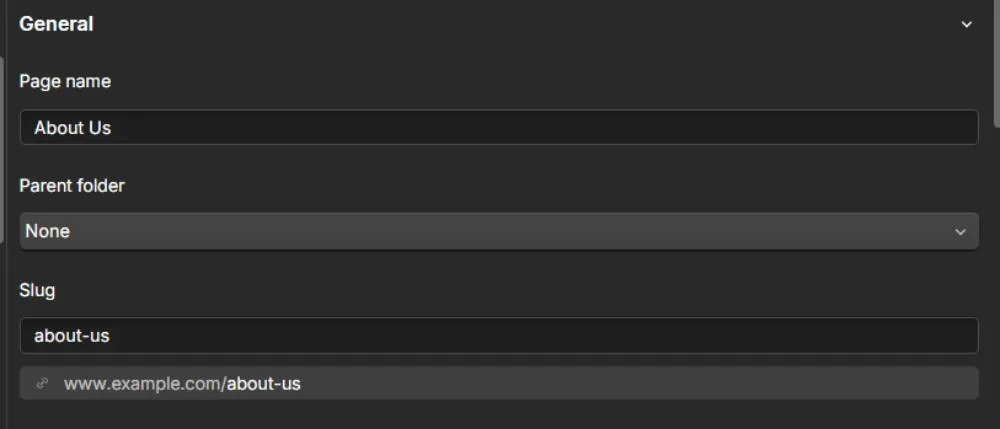
Webflow auto-generates slugs from page names, but I always manually optimize them because the defaults aren't always ideal.
Best-practice format:
- Lowercase letters only
- Hyphens as separators (not underscores or spaces)
- Primary keyword included
Good: /webflow-seo-checklist
Bad: /Webflow_SEO_Checklist or /page-1
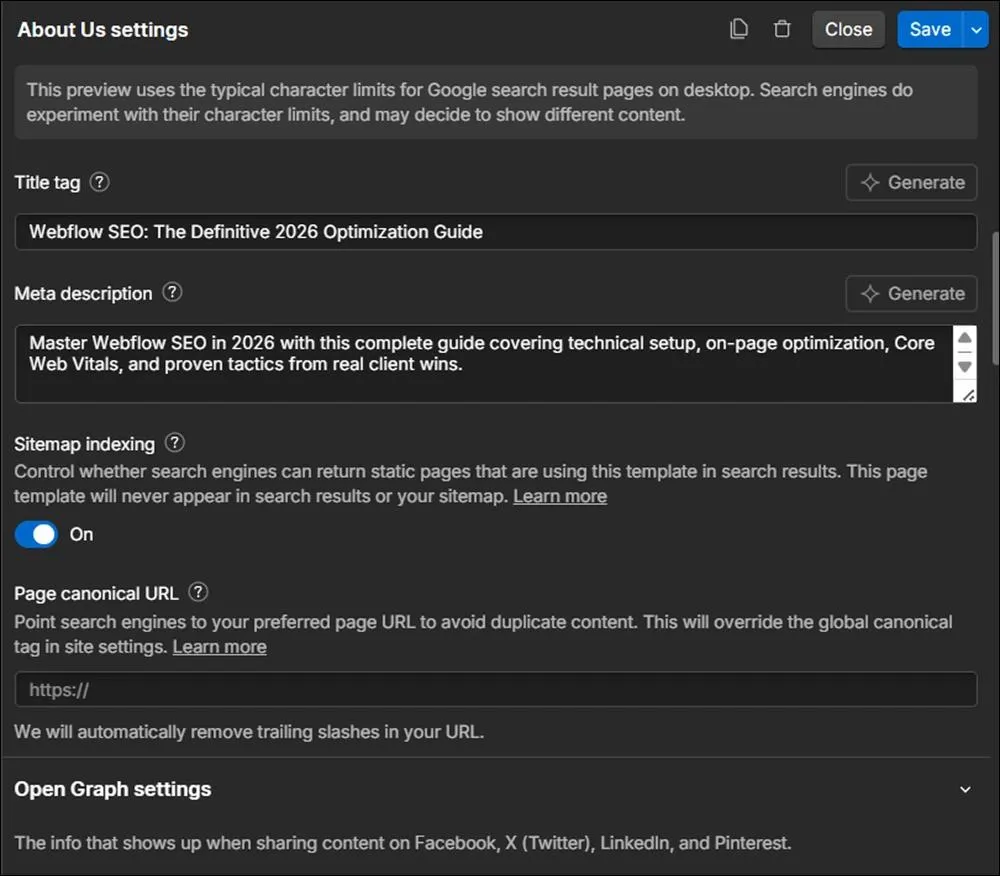
12. Optimize Title Tags and Meta Descriptions
Character limits matter because Google truncates longer text:
- Title tags: 50-60 characters max
- Meta descriptions: 150-160 characters max
Title tags and meta descriptions appear in search results, social shares (Open Graph), and browser tabs. They're your first impression in SERPs.
In Webflow, find the title and description fields in Page Settings → SEO tab. For dynamic pages, use CMS item fields.
13. Write Descriptive Image Alt Text
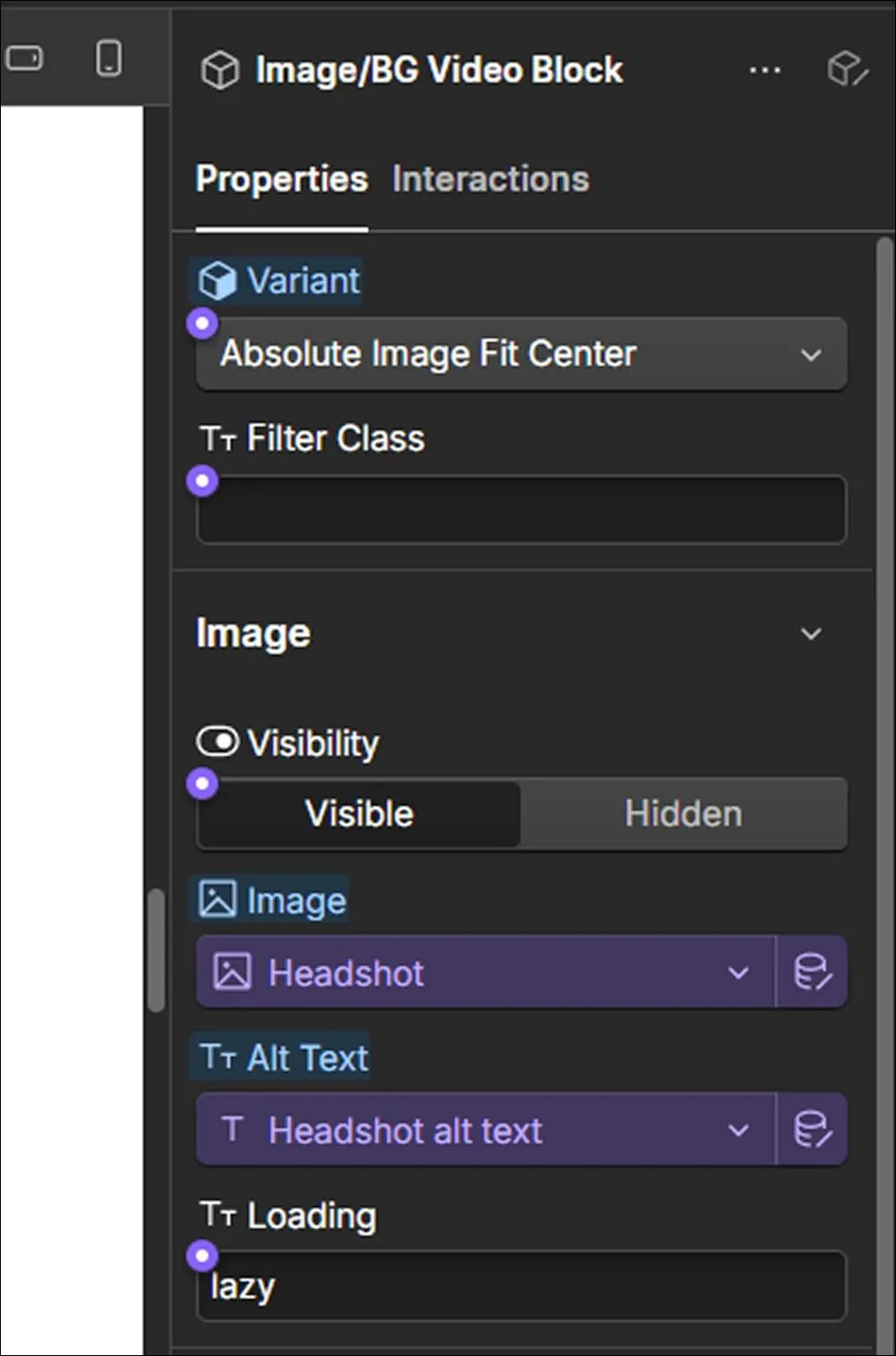
Alt text serves three purposes that matter:
- Accessibility: Screen readers announce it to visually impaired users
- SEO: Google uses it to understand image content for Image Search
- Context: Displays if the image fails to load
In Webflow, select an image → Settings panel → Alt Text field. Describe the image concisely. Example: "Webflow SEO settings panel showing canonical URL field." Be specific, not generic.
14. Compress and Optimize Images
I recommend specific targets based on what I've seen work:
- Format: WebP (smaller file size than JPEG/PNG)
- Hero images: Under 200 KB
- In-content images: Under 100 KB
Webflow's responsive image feature auto-generates multiple sizes. For manual control, use tools like TinyPNG before uploading.
15. Add an LLMs.txt File for AI Search Visibility
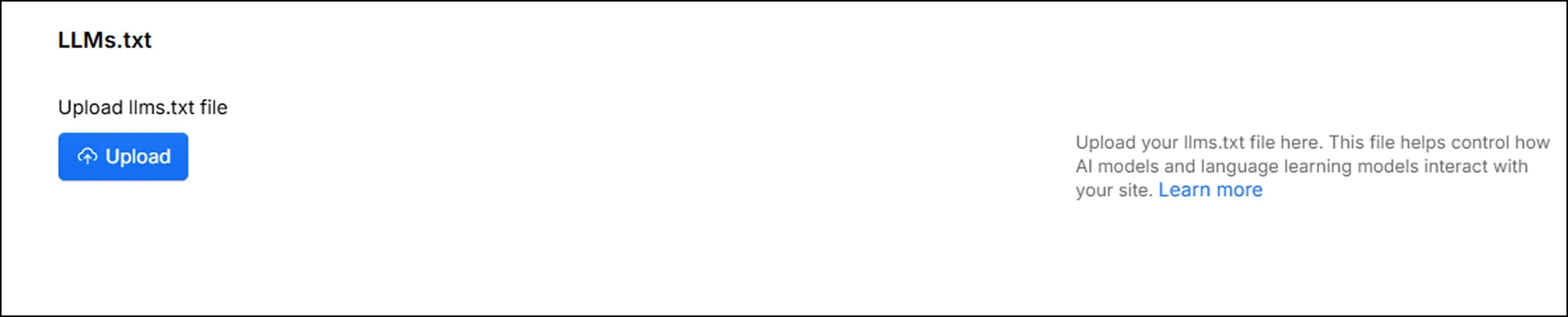
LLMs.txt is a Markdown file that gives AI crawlers a curated guide to your most important content. Adoption took off through 2025. Anthropic, Stripe, Cloudflare, Vercel, and Perplexity all have one, along with 844,000+ other sites by late 2025.
Major AI platforms haven't officially confirmed they use llms.txt for inference yet, so the direct ranking impact is still unproven. But the cost is near zero, and being ready for when adoption tips are worth the 30 minutes it takes to set up.
To implement in Webflow:
- Webflow now offers native LLMs.txt support in newer projects. Check Project Settings → SEO for the option.
- If your project doesn't have native support yet, create a plain-text Markdown file with your key pages and descriptions, then upload it via Webflow's Custom Code or hosting.
- Reference the file path in your robots.txt for discoverability.
For the current format spec, check llmstxt.org.
16. Plan Clear Site Navigation and Hierarchy
I follow the 3-click rule on every project: no page should sit more than three clicks from the homepage. Pages buried deeper get crawled less and rank worse for it.
In Webflow, verify this by mapping your navbar, footer, and Collection list links. If you find pages buried deeper, restructure your navigation. I've seen important service pages buried four or five clicks deep, and they consistently underperform in search.
I recommend a hub-and-spoke structure for content organization:
- Pillar pages (hubs): Link to related subtopic pages
- Subtopic pages (spokes): Link back to the hub and to each other
- Implementation: Use Webflow's Link Block and Rich Text elements to build this systematically within CMS templates
17. Design Your URL Folder Structure
Webflow lets you organize pages into folders, and the folder name becomes part of the URL. This is one of the harder things to fix later. Once a page is indexed and getting links, changing the folder means setting up redirects and waiting for Google to catch up.
Here's the structure I use on most B2B sites:
- Homepage: /
- Services hub: /services/
- Individual service pages: /services/[service-name]/
- Blog hub: /blog/
- Blog posts: /blog/[post-slug]/
- Case studies: /case-studies/[client]/
- About page: /about/
- Contact page: /contact/
A few things I follow:
Keep folders at 2 levels max. A URL like /blog/post-name works well. Something like /resources/blog/2026/seo/post-name pushes content too deep and splits link equity across folders.
Name folders after your topic, not generic labels. If you're targeting "Webflow SEO," use /webflow-seo/ instead of /resources/ or /articles/.
For CMS Collections, the Collection URL is the folder. When you create a Collection called "Blog Posts," Webflow sets the Collection URL to blog-posts by default. Change it to blog in Collection Settings before you publish anything. Otherwise, every post lives at /blog-posts/post-name.
One thing worth knowing: since April 2023, Webflow supports CMS Folders, which let you add a parent folder before the Collection URL. So you can get URLs like /content/blog/post-name if you need a deeper hierarchy. You set it in the Collection template page settings.
18. Plan Your CMS Collections and Reference Fields
Most articles skip this, but in Webflow, your CMS Collections are your site architecture. Every Collection creates a URL pattern, and reference fields are what link related pages together automatically.
Before creating a Collection, decide on the name and URL (this becomes the folder for every item), mark SEO fields like meta title and description as required so nothing publishes empty, and plan your reference fields.
Reference fields create one-to-one links (Post to Author), and multi-reference fields power related posts and topic clusters.
Here's how I usually set this up on a SaaS site:
- Blog Posts connect to Categories, Authors, and other related blog posts.
- Case Studies connect to the Industry they belong to and the Services they showcase.
- Services connect to relevant Industries and to other related Services.
- Industries act as the connector that ties Services and Case Studies together.
Two mistakes I see often: using one giant "Pages" Collection for everything, which kills any logical URL structure, and renaming Collections after launch, which breaks every URL and forces bulk 301 redirects. Plan it on paper before you open the Designer.
19. Build Breadcrumb Navigation
Breadcrumbs tell Google your page hierarchy and sometimes show up as a small navigation trail in search results, which can improve click-through rate.
Webflow doesn't have a native breadcrumb component, so you have to build them yourself.
For static pages: add a wrapper div with Link Blocks for each level, separated by a > symbol.
For CMS Collection pages: add a "Category" reference on each item, then pull the parent name and link from that reference field on the Collection template. The result (Home > Blog > [Category] > [Post Title]) updates automatically as you publish new items.
For the schema: add BreadcrumbList JSON-LD in Page Settings → Custom Code → Head section.
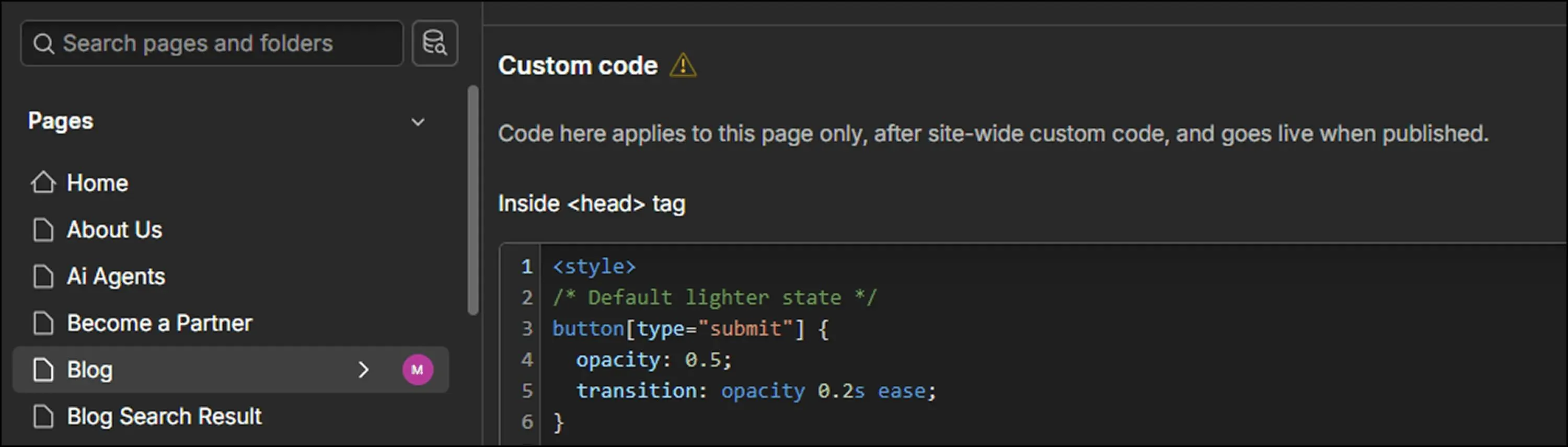
Grab a template from Schema.org or use Google's free generator. For Collection Pages, add it in the Collection template's settings, not global Site Settings, and test it in Google's Rich Results Test after publishing (it doesn't render in Webflow preview).
One thing to know: as of January 2025, Google removed breadcrumb-rich results from mobile search results. They still appear on desktop, and the schema continues to help Google understand site hierarchy on both.
20. Build a Strong Internal Linking Structure
For CMS template linking, add Related Posts or Category links using Reference fields. This creates contextual internal links across blog posts automatically, without manual work on each piece.
For internal content links, use Rich Text Link elements to link relevant keywords in body copy to other pages. There's no magic number, but most of the sites I work with land somewhere between 2 and 5 internal links per 1,000 words.
In one case, our work with Functionize is a good example. We applied a silo content strategy by building a comprehensive guide targeting "automated testing" as the central hub, then connected it to child pages through an internal linking panel on the parent page. Child pages are linked back to the parent and to each other through specific in-content anchor texts. The silo pages ended up ranking for 701 new top 10 keywords and pushed Functionize to 7th position for "automated testing."
Done well, internal linking keeps working for you. Every new page you add makes the older ones stronger.
Frequently Asked Questions
Can I handle Webflow SEO setup myself, or should I hire a professional?
Most technical settings can be configured by anyone following a checklist, especially on smaller websites. However, larger sites with hundreds of CMS pages, platform migrations, or international SEO requirements often benefit from an experienced SEO specialist to avoid costly mistakes.
How long does it take for SEO changes in Webflow to affect rankings?
Simple changes like updating metadata or fixing indexing issues may be reflected after Google recrawls your site, which can take anywhere from a few days to several weeks. More competitive keyword improvements typically require consistent optimization over several months.
Is Webflow SEO a one-time setup?
No. Initial setup is only the foundation. Ongoing content creation, internal linking, backlink acquisition, technical audits, and performance monitoring are all necessary to maintain and improve rankings over time.
When should I consider hiring a Webflow SEO agency?
If your site isn’t generating leads, rankings have plateaued, you’re migrating from another platform, or you’re competing in a highly competitive industry, working with a Webflow SEO agency can often accelerate growth and prevent technical mistakes.
References
- https://web.dev/articles/lcp
- https://portent.com/blog/analytics/research-site-speed-hurting-everyones-revenue.htm
- https://help.webflow.com/hc/en-us/articles/41954080897683-Set-robots-txt-rules
- https://www.pewresearch.org/short-reads/2025/07/22/google-users-are-less-likely-to-click-on-links-when-an-ai-summary-appears-in-the-results/
- https://search.google.com/search-console/about
- https://almanac.httparchive.org/en/2024/structured-data
- https://search.google.com/test/rich-results
- https://backlinko.com/google-ranking-factors
- https://help.webflow.com/hc/en-us/articles/33961294898835-How-do-I-set-up-redirects-in-Webflow
- https://help.webflow.com/hc/en-us/articles/33961263684115-Set-canonical-tags-to-improve-SEO
- https://help.webflow.com/hc/en-us/articles/33961355371667-Create-a-sitemap-in-Webflow
- https://webflow.com/integrations/amazon-cloudfront
- https://almanac.httparchive.org/en/2024/cms
Maria Harutyunyan is the Co-founder and Head of SEO at Loopex Digital. She specializes in general SEO and strategy for SaaS, e-commerce, and B2B brands. An expert in on-page (onsite) SEO with more than 10 years in search, she is recognized by the SEO community as one of the top voices in the field. She has been featured in Forbes, quoted as an SEO expert on Shopify, and writes for Convince & Convert, SE Ranking, and Mangools (KWFinder). She is also the founder of Armenia's first SEO Academy, having trained 500+ marketers.
Submit the form - Get Free Proposal
%202.png)
24 hours
Don’t forget to share this post!
Latest Articles





Submit the form - Get Free Proposal
24 hours

